
Setting up SDL 3 on XCode 26.6
Last Updated: Aug 12th, 2026
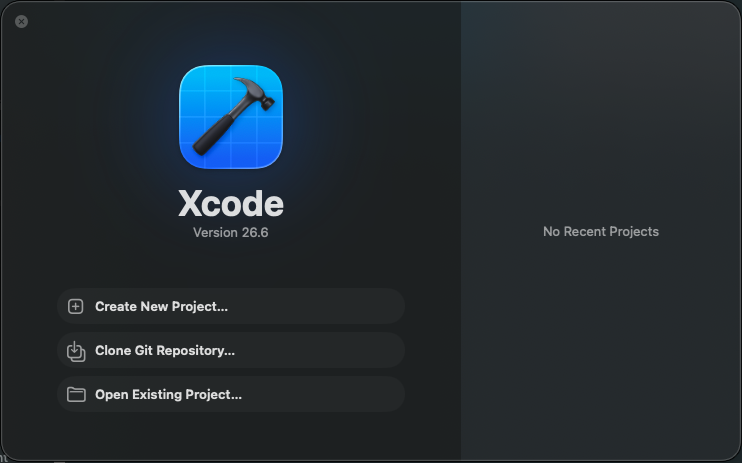
1) Start up XCode and create a new project:
Create a Command Line Tool: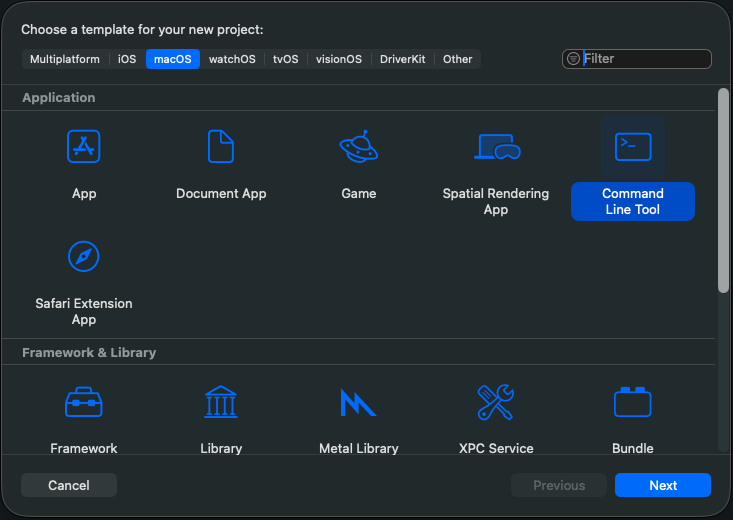
Set your project options: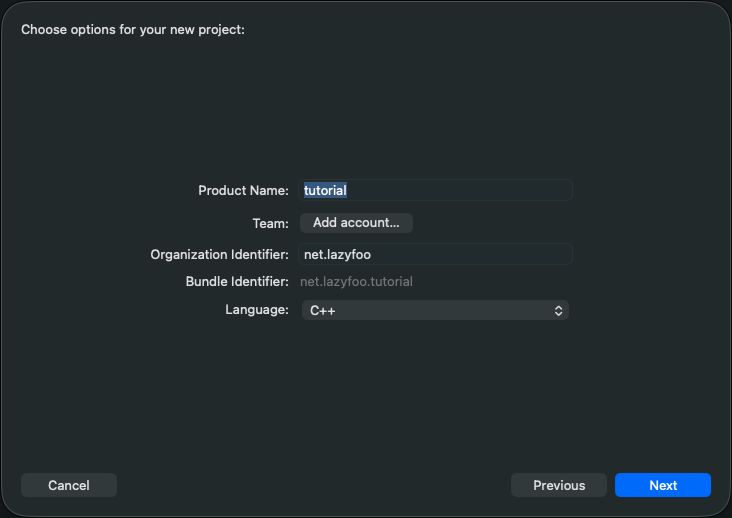
And place your project where you want. Here we're placing it in the home directory: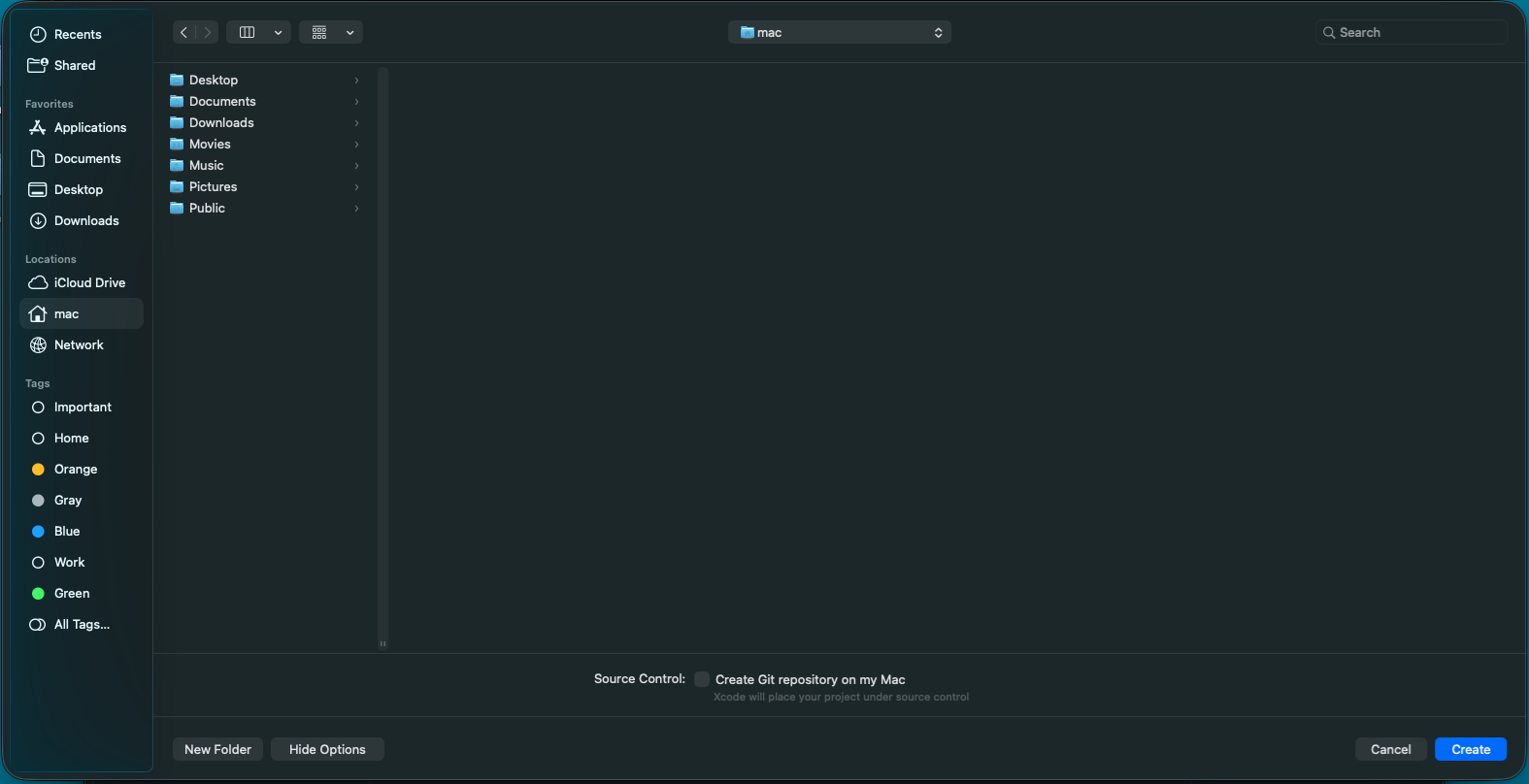
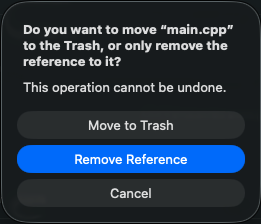
2) You're going to want to delete the folder containing the files generated when you created the project: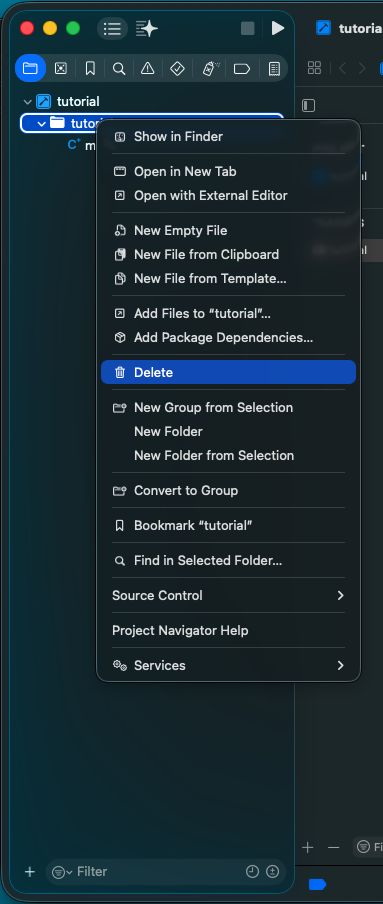
Download the tutorial files. Extract the folder inside and place it alongside your xcodeproj file: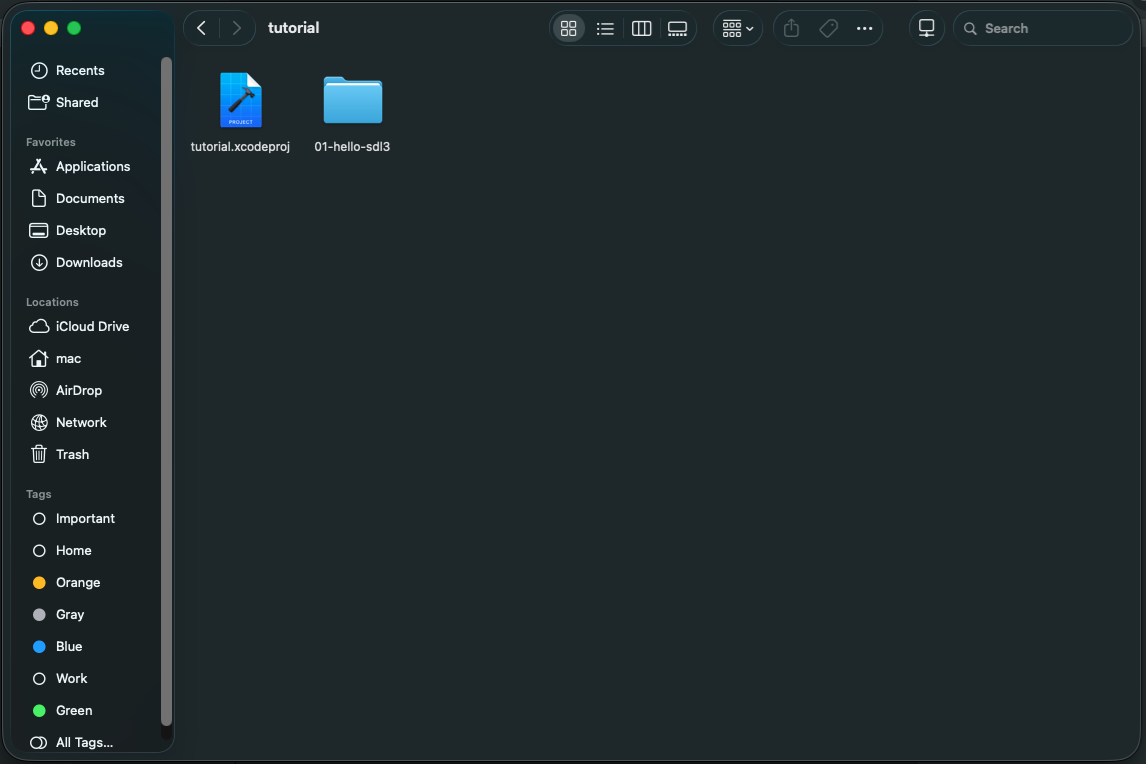
Right click on your project in XCode to add files to tutorial: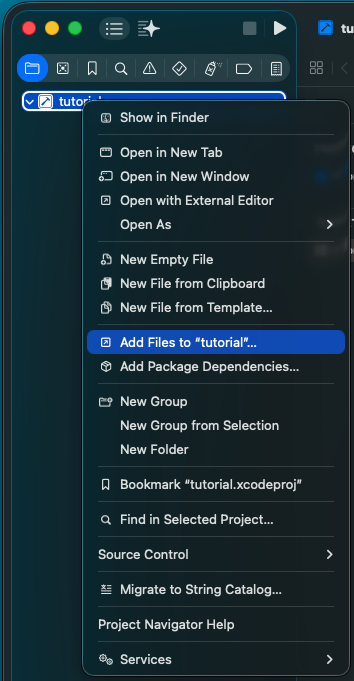
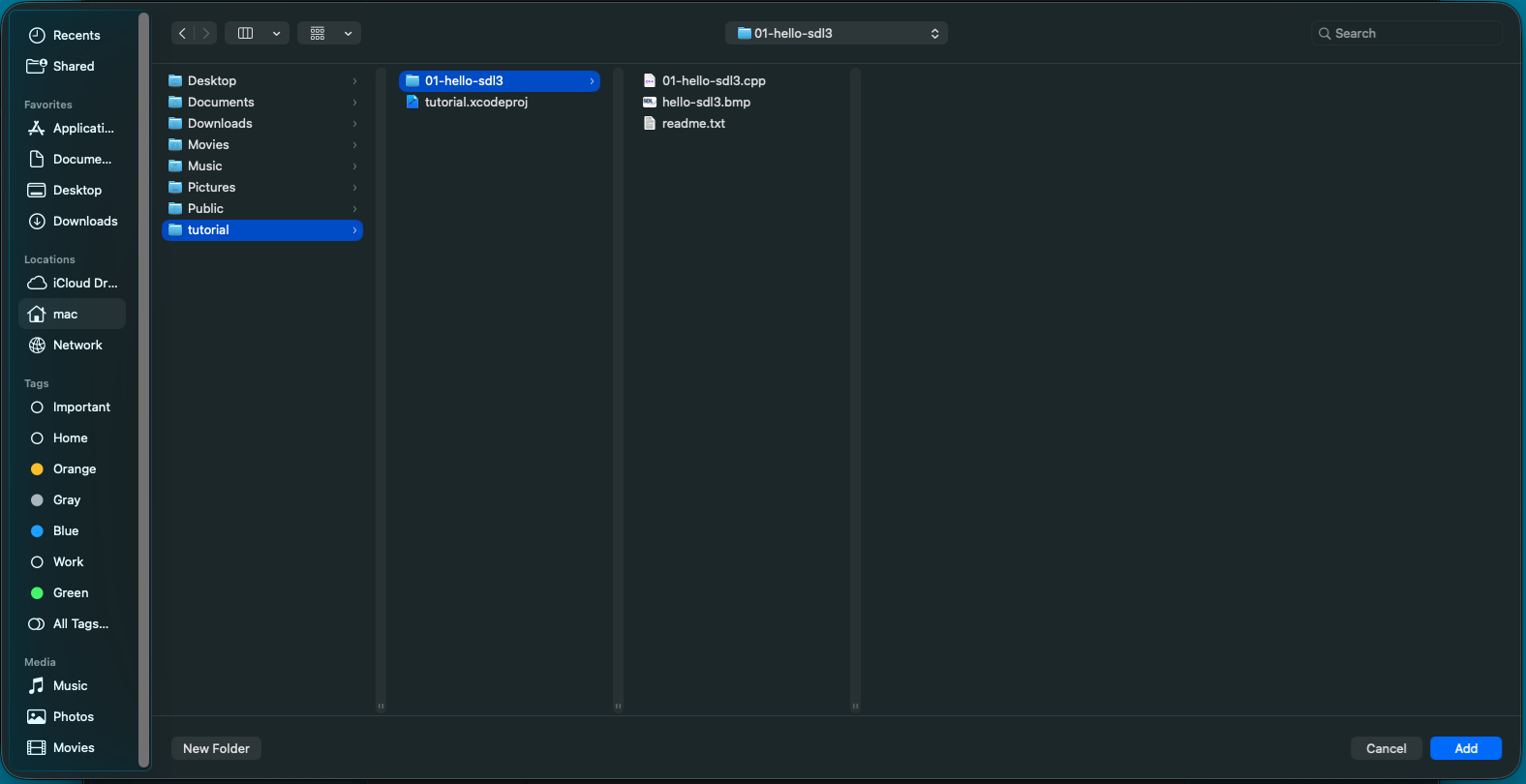
Don't forget to add references in place, create folders, and select your target: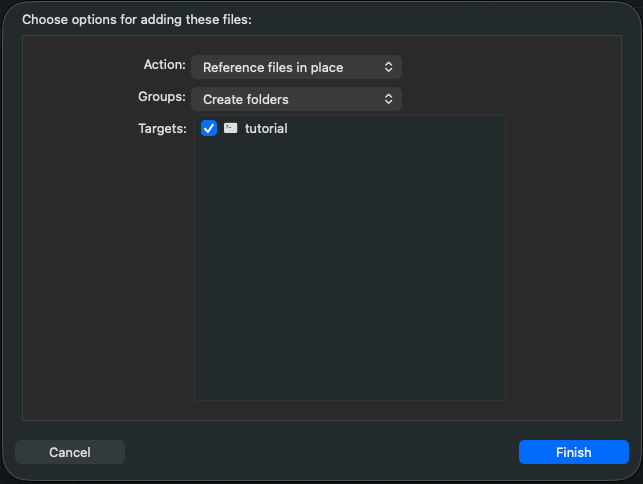
3) Now Build and you should get the following error:
Go download the SDL3 development DMG on the SDL GitHub. Click Show All Assets if you need to: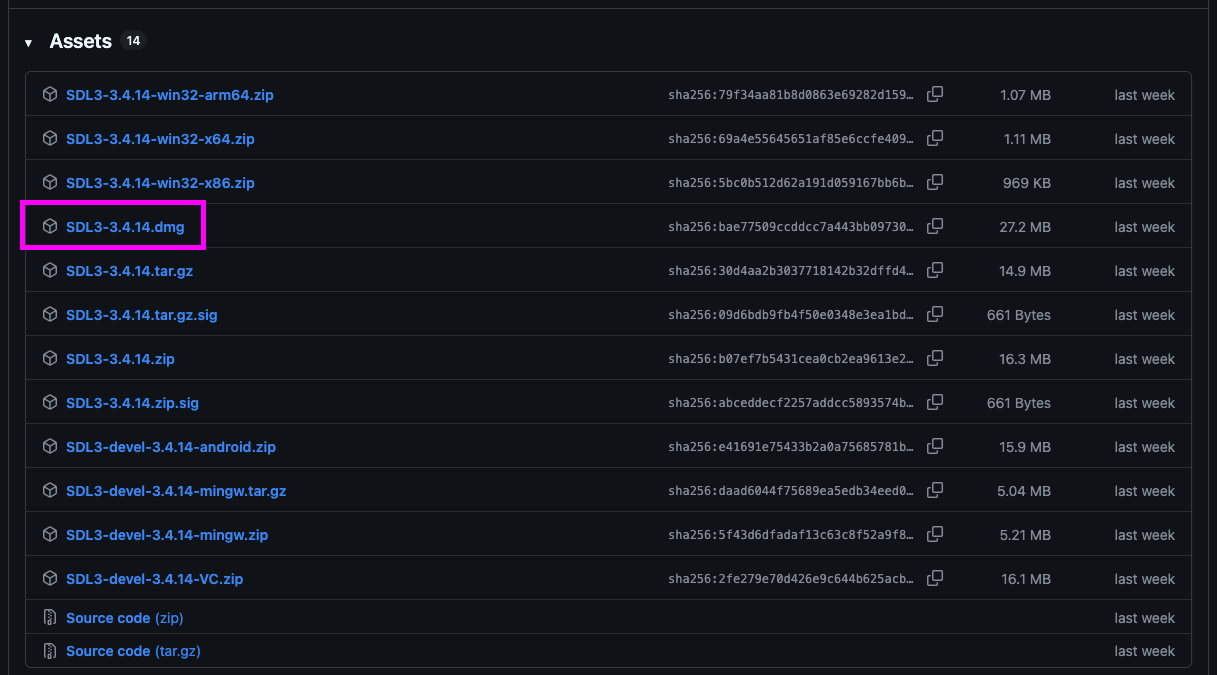
Open up the DMG and copy the cxframework file to your project directory alongside your xcodeproj file: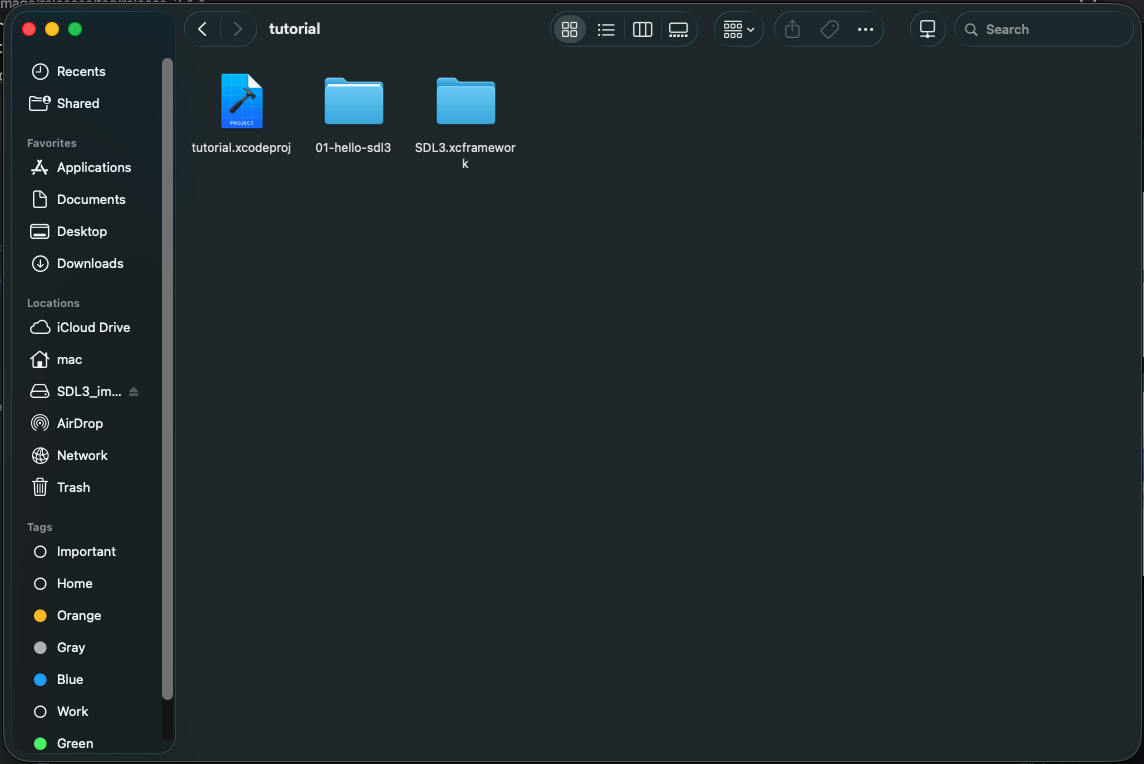
In XCode, select your project, go to build phases, and click the plus sign under Link With Libraries to add the xcframework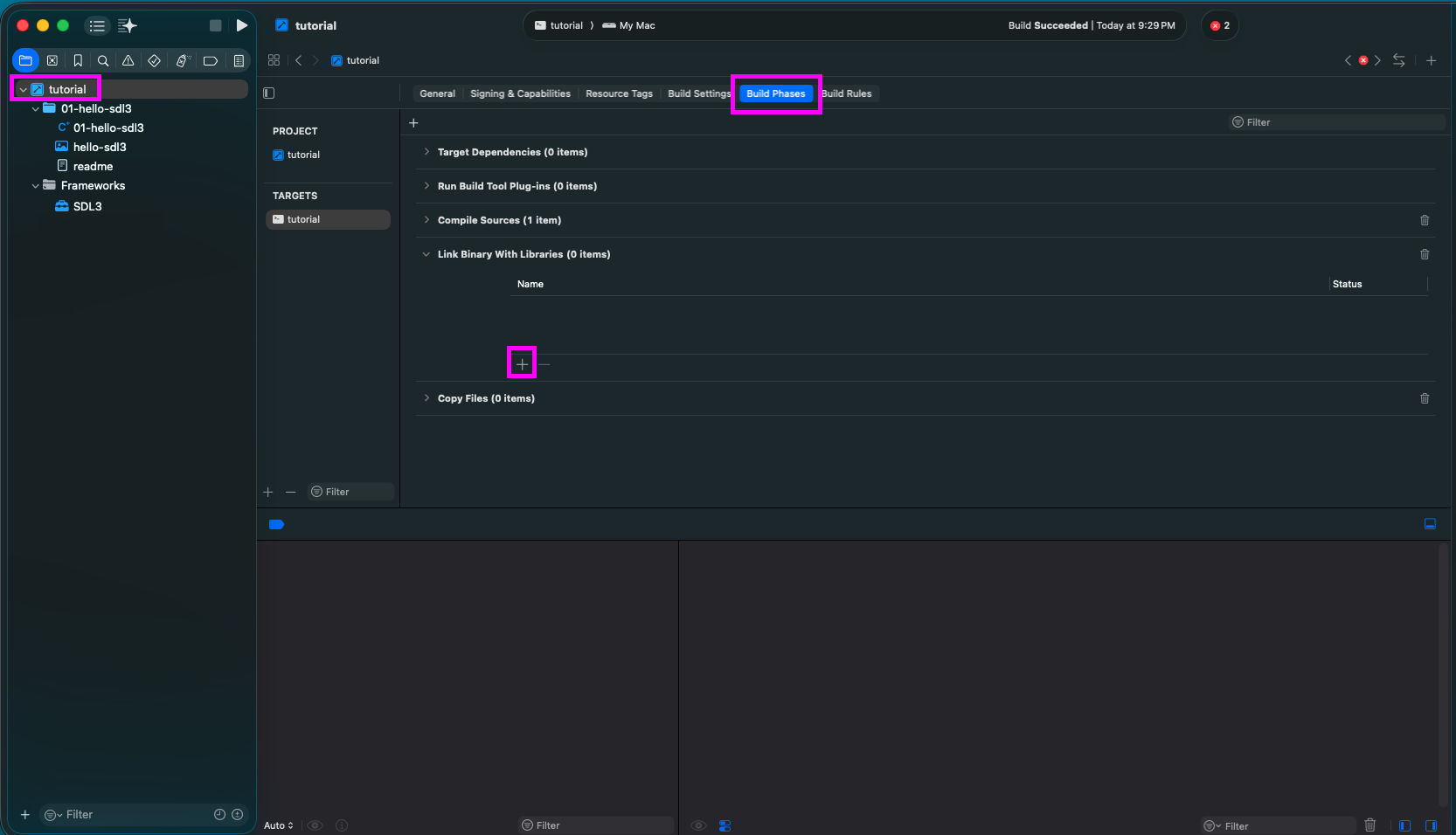
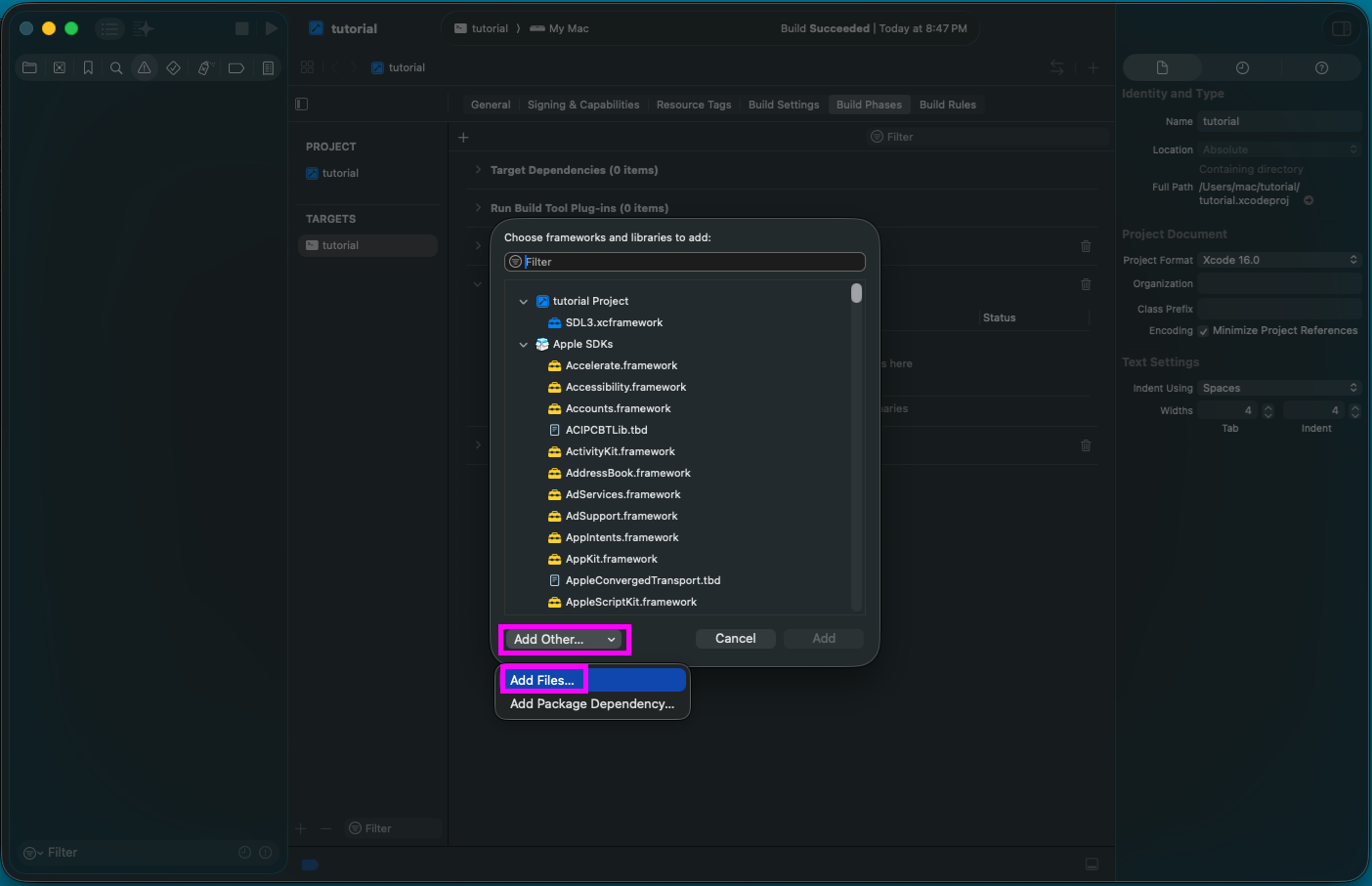
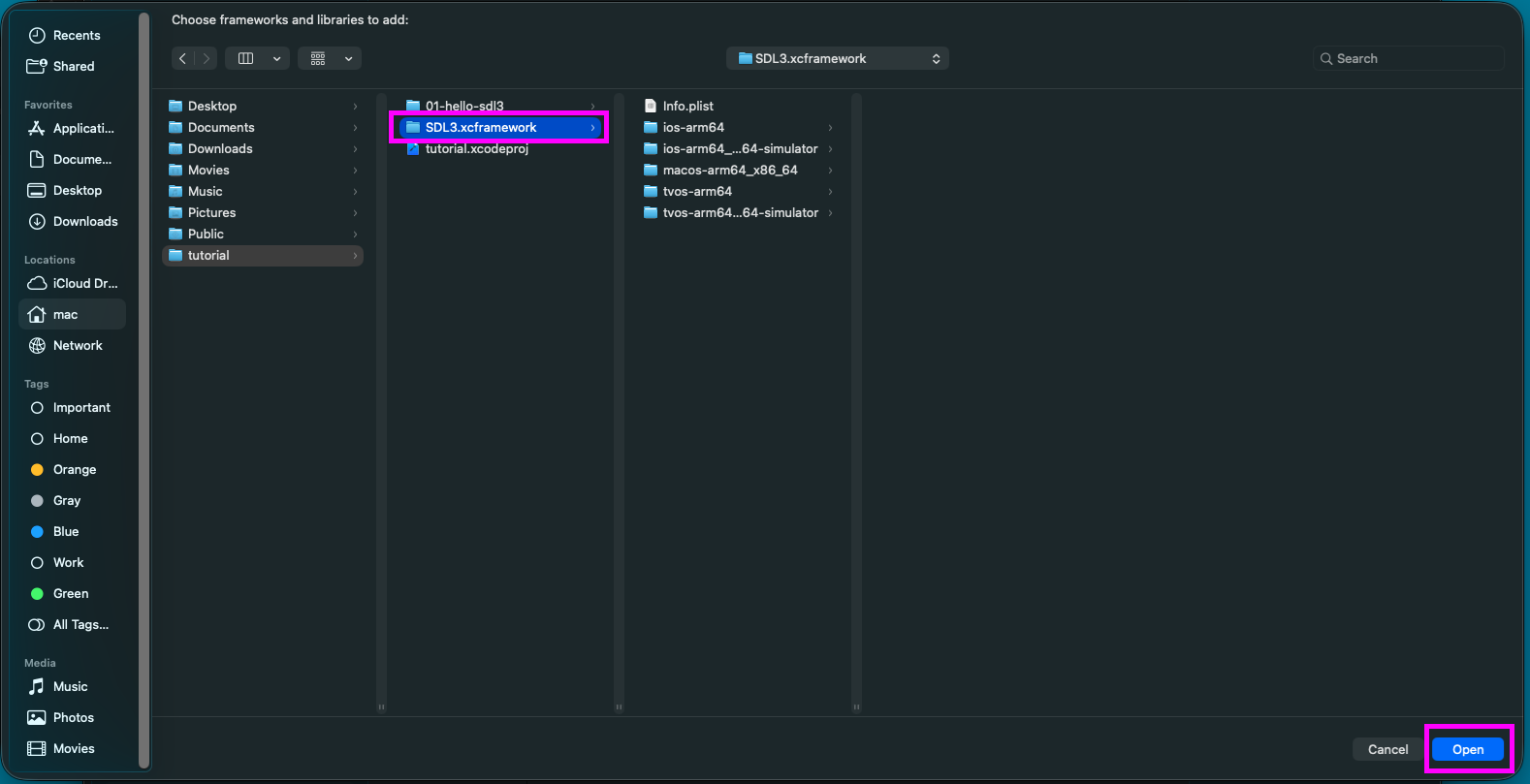
If you see anything about embedding the framework, that means you messed up. Do not embed the framework.
Your project should successfully build now.
4) If you try to run now you'll get the following error:
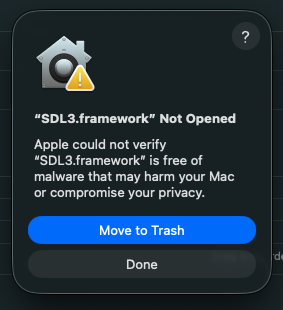
Apple really doesn't like it when you try to run anything that isn't from their AppStore. Hit done and open a terminal in your project directory.
You'll need to do two things to use the SDL framework. First you'll need to remove the quarantine attribute from the framework:
Secondly, you'll have to sign the framework:
If you try to sign it then remove it from quarantine, it will not work. It must be removed from quarantine first then signed.
Now the application should run.
5) However, even though the project runs it immediately quits with:
This is because it can't find the image file it's supposed to load. To change which directory the application looks when loading files, we need to change the working directory.
To change the working directory, go to Product, Scheme, and Edit Scheme: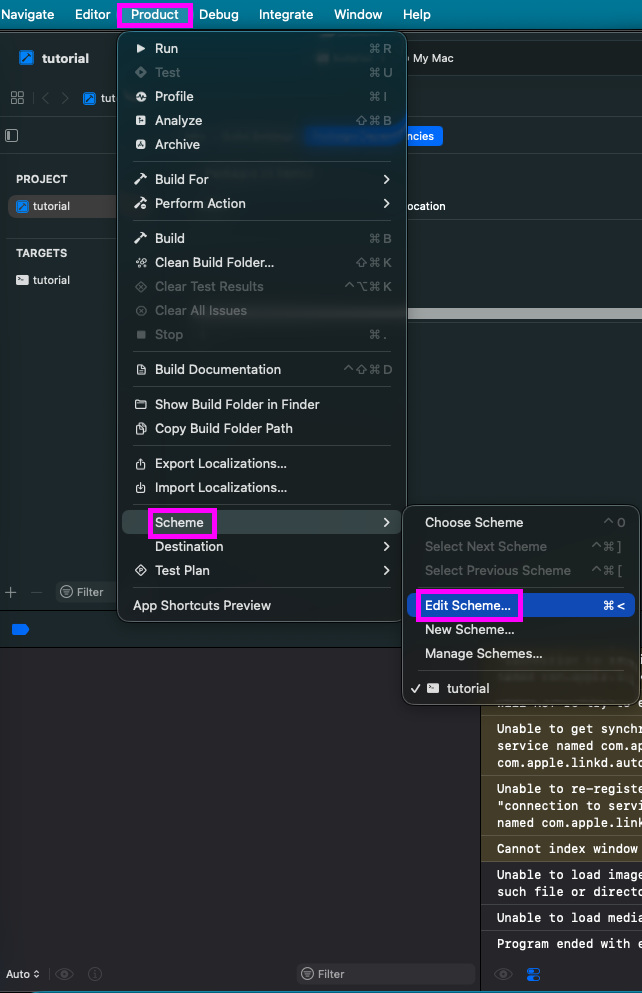
Select Run, scroll down to Working Directory, check Use Custom working directory and set it to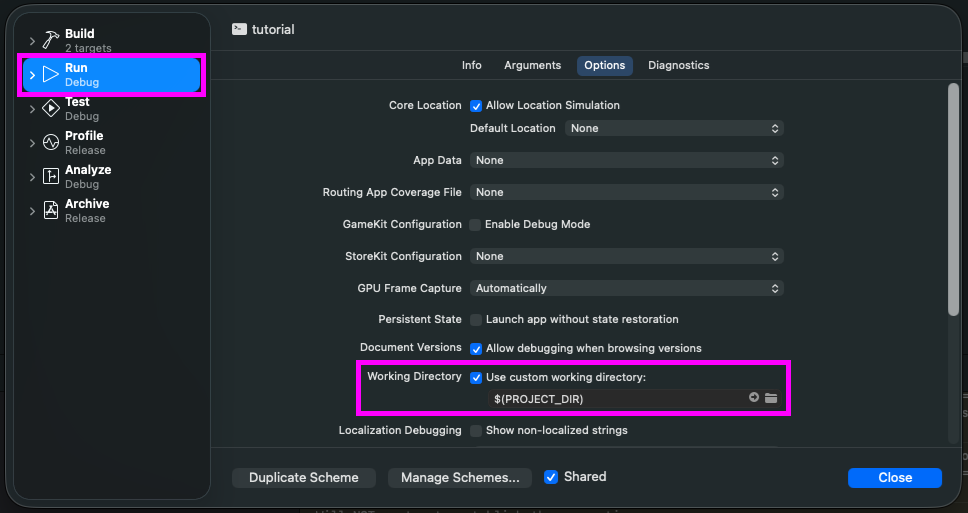
This way it when you run your application, it will look where the xcodeproj file is located. So if your application is trying to load
Now the application should build and run properly. You may have been annoyed about the fact that we did every error as opposed to just doing the set up correctly the first time. I would argue that it's important not only how to do things correctly, but also to know how to handle when things go wrong.
With SDL3 set up, you can move onto the second part of the tutorial.
Create a Command Line Tool:
Set your project options:
And place your project where you want. Here we're placing it in the home directory:
2) You're going to want to delete the folder containing the files generated when you created the project:
Download the tutorial files. Extract the folder inside and place it alongside your xcodeproj file:
Right click on your project in XCode to add files to tutorial:
Don't forget to add references in place, create folders, and select your target:
3) Now Build and you should get the following error:
'SDL3/SDL.h' file not found. This makes sense since you
haven't set up the SDL framework.Go download the SDL3 development DMG on the SDL GitHub. Click Show All Assets if you need to:
Open up the DMG and copy the cxframework file to your project directory alongside your xcodeproj file:
In XCode, select your project, go to build phases, and click the plus sign under Link With Libraries to add the xcframework
If you see anything about embedding the framework, that means you messed up. Do not embed the framework.
Your project should successfully build now.
4) If you try to run now you'll get the following error:
SDL33.framework Not Opened
Apple could not verify “SDL3.framework” is free of malware that may harm your Mac or compromise your privacy.
Apple really doesn't like it when you try to run anything that isn't from their AppStore. Hit done and open a terminal in your project directory.
You'll need to do two things to use the SDL framework. First you'll need to remove the quarantine attribute from the framework:
sudo xattr -d -r com.apple.quarantine SDL3.xcframeworkSecondly, you'll have to sign the framework:
codesign --force --deep --sign - SDL3.xcframeworkIf you try to sign it then remove it from quarantine, it will not work. It must be removed from quarantine first then signed.
Now the application should run.
5) However, even though the project runs it immediately quits with:
Unable to load image 01-hello-sdl3/hello-sdl3.bmp! SDL Error: Couldn't open 01-hello-sdl3/hello-sdl3.bmp: No such file or directoryThis is because it can't find the image file it's supposed to load. To change which directory the application looks when loading files, we need to change the working directory.
To change the working directory, go to Product, Scheme, and Edit Scheme:
Select Run, scroll down to Working Directory, check Use Custom working directory and set it to
$(PROJECT_DIR).
This way it when you run your application, it will look where the xcodeproj file is located. So if your application is trying to load
01-hello-sdl3/hello-sdl3.bmp
and your xcodeproj is located at ~/tutorial/tutorial.xcodeproj, then the bmp file needs to be at ~/tutorial/01-hello-sdl3/hello-sdl3.bmp.Now the application should build and run properly. You may have been annoyed about the fact that we did every error as opposed to just doing the set up correctly the first time. I would argue that it's important not only how to do things correctly, but also to know how to handle when things go wrong.
With SDL3 set up, you can move onto the second part of the tutorial.
Setting up SDL Extension Libraries
Guys, I really hate doing set up tutorials. They are just so time consuming and tedious. Rather than create a separate tutorial for SDL_image, an extension library that allows you to load many different image formats, I will just add it here.Knowing how to set up extension libraries is important because they add very useful functionality like loading TTF fonts or advanced audio. Here we're going to add SDL_image loading to the first tutorial.
6) In the tutorial source code look for the line that says:
if( gHelloWorld = SDL_LoadBMP( imagePath.c_str() ); gHelloWorld == nullptr )Now replace it with:
if( gHelloWorld = IMG_Load( imagePath.c_str() ); gHelloWorld == nullptr )This is the SDL_image loading function which can load many image file types. However, if you try to build this, you'll get
Use of undeclared identifier 'IMG_Load'.
SDL_image is not a core part of SDL, so you need to add another library to your SDL project to use it.7) Add
<SDL3_image/SDL_image.h> to your header section. Trying to build this will get you 'SDL3_image/SDL_image.h' file not found.
XCode does not know about SDL_image so we need to add it to the project.Go download the SDL_image DMG from the SDL_image GitHub and extract the xcframework, place it in your project directory, and add the framework to your project much like you did with SDL:
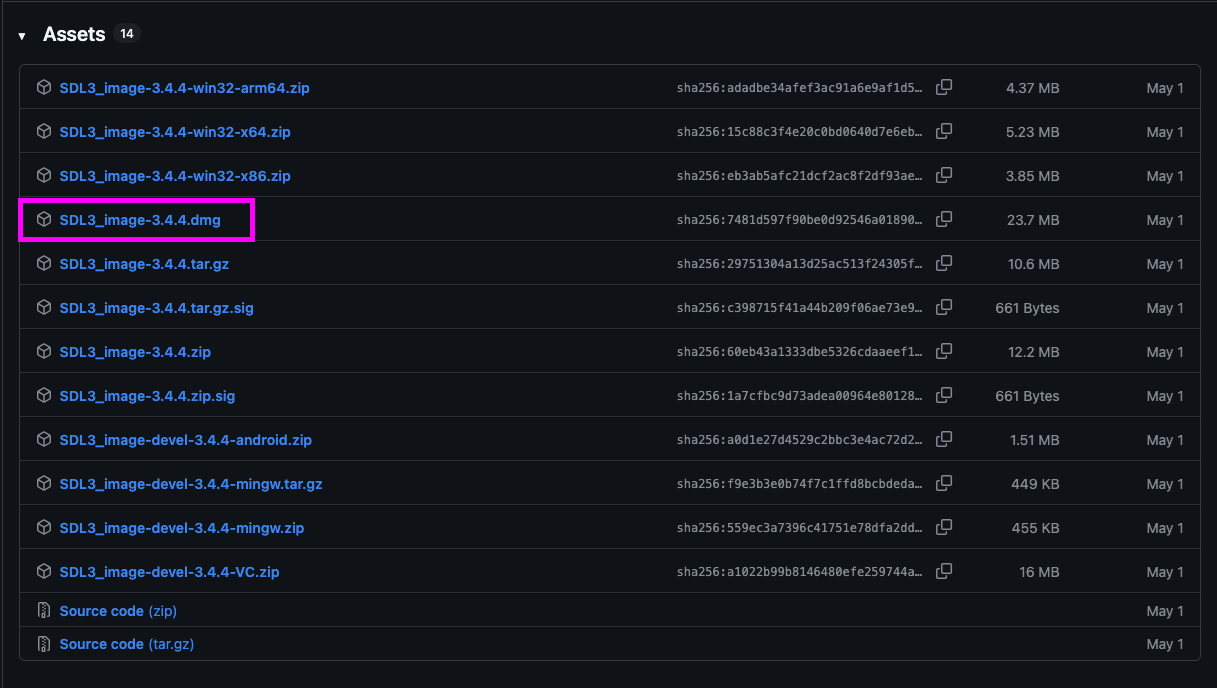
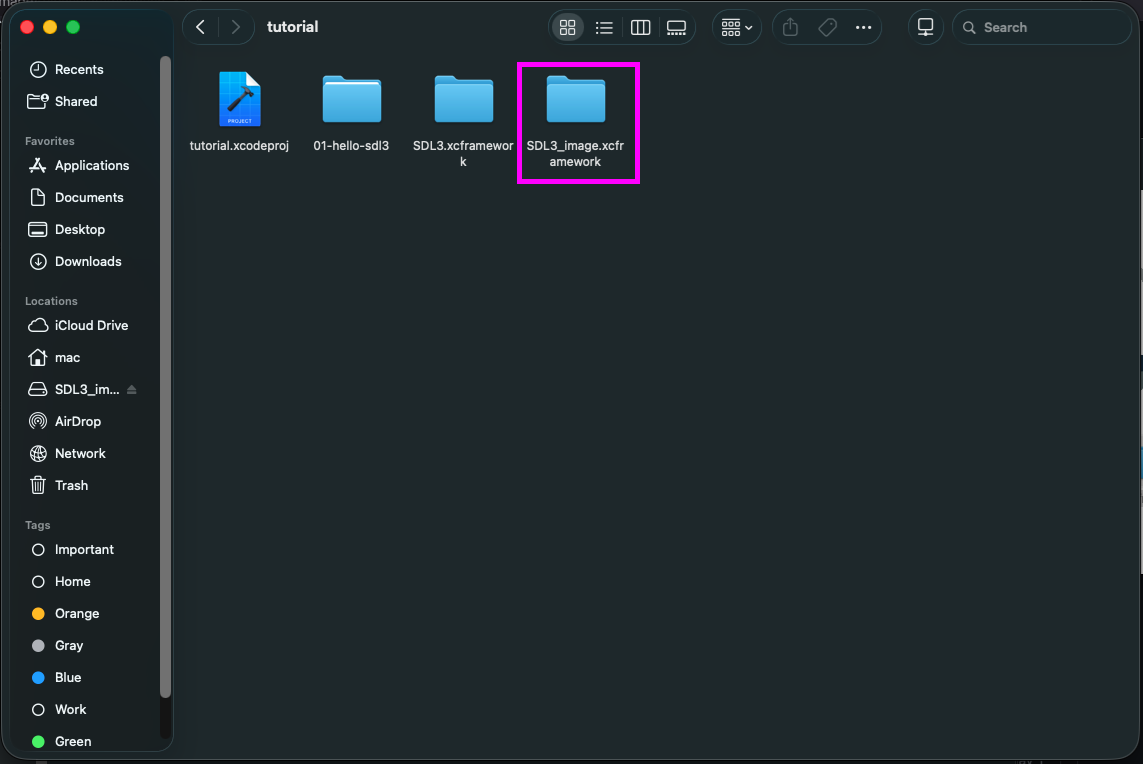
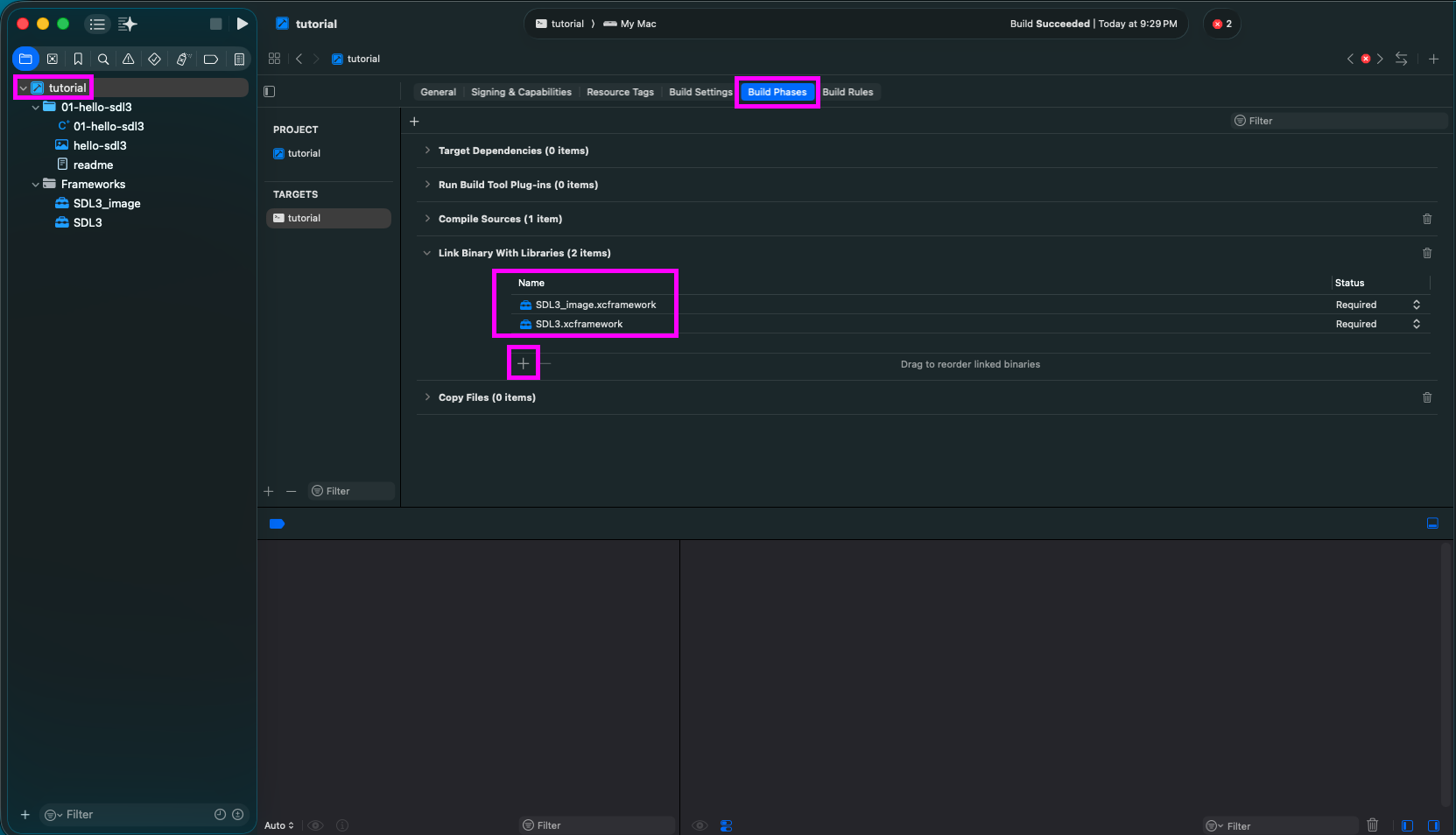
8) The project should build successfully but if you try to run it you should get a familiar error:
Apple could not verify “SDL3_image.framework” is free of malware that may harm your Mac or compromise your privacy.Once once again, you'll need to remove the framework from quarantine (using the terminal from the same directory as the xcodeproj file):
sudo xattr -d -r com.apple.quarantine SDL3_image.xcframeworkAnd then sign the framework:
codesign --force --deep --sign - SDL3_image.xcframeworkNow the program should run with SDL_image loading the image. You may be wondering why we aren't setting the working directory. It's the same image so the project is already pointing to it.
Now that you also have SDL_image set up, you can move onto the second part of the tutorial.
Addendum: Build Engineering
This thing we're doing where we're setting up things to compile is known as build engineering. Large companies will dedicate entire teams to this.
Despite the fact that I have done SDL set up tutorials for years, I would say this tutorial is the first time I have done it correctly where things are loosely coupled. Yeah, when dealing with professional level software even the act of getting your code the build becomes a thing.
If you want to learn more about how to automate stuff like this, look into the XCode/MacOS/iOS build process. If you genuinely understand how Apple does their build process that will get you quite a bit of job security because every company I have worked at that does iOS development had That Guy who we depended on to deal with Apple's build process.
Despite the fact that I have done SDL set up tutorials for years, I would say this tutorial is the first time I have done it correctly where things are loosely coupled. Yeah, when dealing with professional level software even the act of getting your code the build becomes a thing.
If you want to learn more about how to automate stuff like this, look into the XCode/MacOS/iOS build process. If you genuinely understand how Apple does their build process that will get you quite a bit of job security because every company I have worked at that does iOS development had That Guy who we depended on to deal with Apple's build process.